Branded crypto checkout is here: set up your custom checkout domain
September 09, 2026
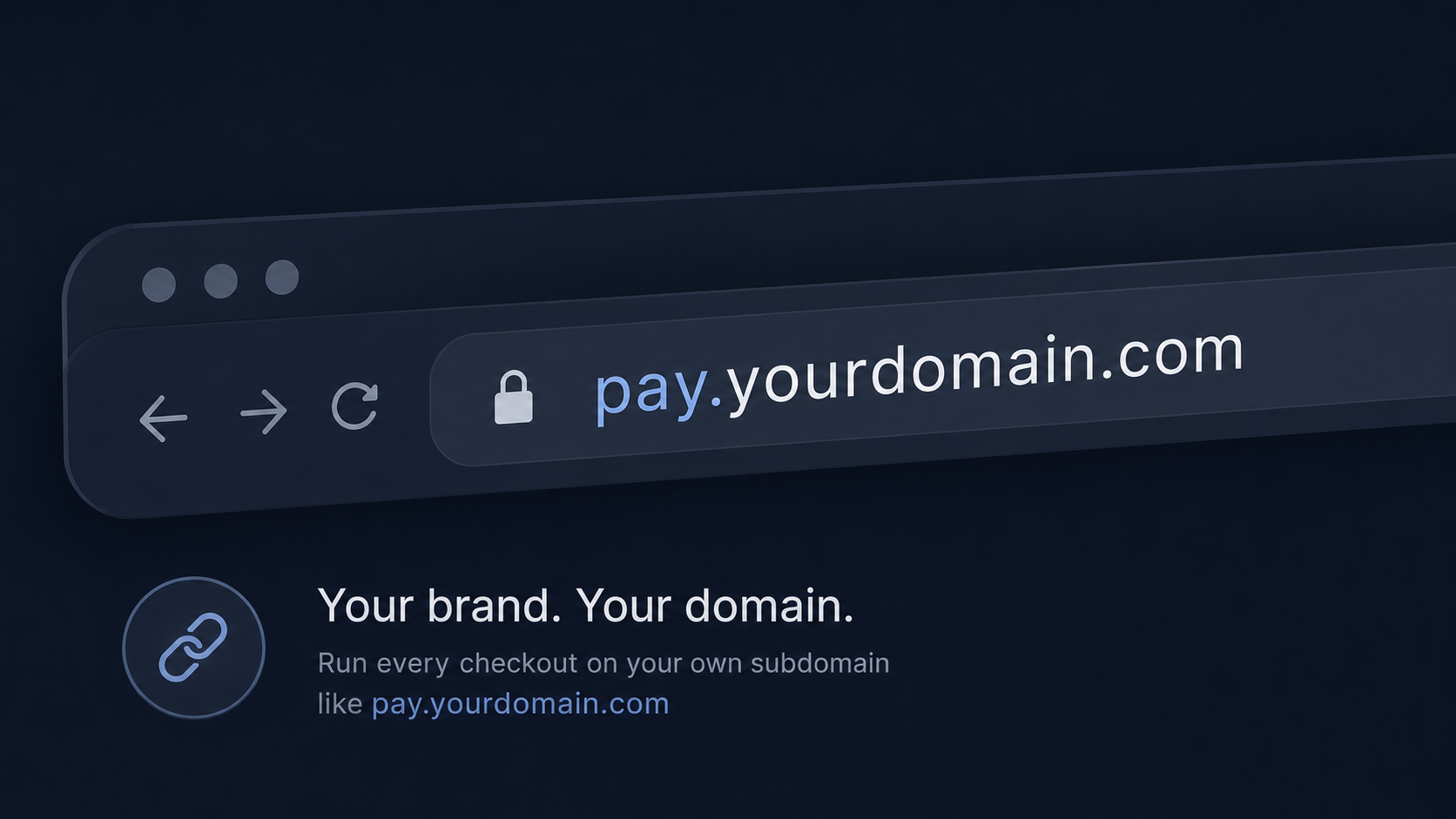
The checkout page is where a sale is won or lost. A buyer who has filled a cart and pulled out their wallet is watching for one thing above all else: that they are still dealing with you. When the payment page suddenly jumps to an unfamiliar domain, that confidence wobbles, and some buyers abandon the purchase right there.
EukaPay now closes that gap. With a custom checkout domain, your customers pay in stablecoins or crypto on a subdomain you control, such as pay.yourcompany.com, instead of a default EukaPay address. The page carries your brand from the first click to the confirmation screen.
In this guide, you'll learn:
What a custom checkout domain is and what changes for your buyers
Why a branded checkout URL matters for trust and conversion
The four steps to set one up, from subdomain to going live
What stays the same underneath, including conversion, settlement, and coin support
What a custom checkout domain is
A custom checkout domain serves your EukaPay payment pages from a subdomain you own. Instead of sending buyers to the default EukaPay URL, every payment link, invoice, and checkout screen loads on an address like pay.yourcompany.com or checkout.yourcompany.com. The page, the flow, and the payment experience are all EukaPay; the address bar is yours.
You set the domain once in the dashboard. After it is active, new payment links use your subdomain automatically, and visitors who land on the default EukaPay checkout URL are redirected to your custom domain. You point a subdomain at EukaPay, not your root domain, so your main website keeps running exactly as it does today.
Why a branded checkout domain matters
Trust at the payment step is fragile, and the domain in the address bar is one of the first signals a buyer checks. A consistent domain from product page to payment page tells the customer they are in the right place and reduces the hesitation that leads to abandoned carts.
A branded checkout domain also protects the experience for repeat buyers and B2B customers who pay invoices on a recurring schedule. When the payment link always lives on your subdomain, finance teams recognise it, security filters are easier to whitelist, and the email containing the link looks like it came from you. For prospects comparing crypto payment providers, control over the checkout domain is the difference between a white-label experience and a third-party redirect.
How to set it up in four steps
The full walkthrough lives in the
custom checkout domain setup guide
. Here is the short version. You will need a subdomain you control and access to your DNS provider, such as Cloudflare, GoDaddy, Namecheap, or Route 53.
Step 1 - add your subdomain
Go to
Settings → Business → Custom domain
in the EukaPay dashboard and click Add custom domain. Enter the hostname only, for example pay.yourcompany.com, with no https://, path, or port. Root domains such as yourcompany.com are not supported; use a subdomain.
Step 2 - add two DNS records
The dashboard shows two records to copy into your DNS provider: a CNAME that routes traffic to EukaPay hosting, and a TXT record that proves you own the domain. Each merchant gets a unique TXT value, so paste the exact name, value, and target shown for your hostname with no extra spaces or quotes.
Step 3 - wait for verification
EukaPay checks your DNS automatically about every five minutes while the domain is pending. You can also run a check immediately after you update DNS. The status stays at Pending verification until both the CNAME and TXT checks pass.
Step 4 - go live when status is Active
Once the badge shows Active, your custom hostname becomes the current checkout domain. New payment links use your subdomain, and buyers on the default EukaPay checkout URL are redirected to your domain. Until the domain is Active, checkout stays on the default EukaPay URL, so customers never see a broken or half-configured page.
Domain statuses at a glance
Status | What it means |
Pending verification | The domain is saved and EukaPay is waiting for the correct DNS records or for propagation to finish. |
Active | The CNAME and TXT checks passed, and checkout is now served on your custom subdomain. |
One platform underneath
Changing the domain changes nothing about how payments work. Underneath your branded checkout is the same EukaPay infrastructure: instant crypto-to-fiat conversion at a locked exchange rate to remove all crypto volatility, protection against chargebacks, support for a wide range of cryptocurrencies, and settlement in USD, EUR, GBP, CAD to your bank account. EukaPay supports most major cryptocurrencies like BTC, ETH, LTC, SOL, USDC, USDT.
A custom checkout domain is a presentation choice, not a different product. You decide how the payment page looks to your customers, and EukaPay handles the conversion, settlement, and reconciliation exactly as before.
Frequently asked questions
Can I use my root domain, such as yourcompany.com?
No. EukaPay uses a subdomain you control, such as pay.yourcompany.com or checkout.yourcompany.com. Your root domain keeps serving your main website.
Will customers see an error if my DNS is not ready yet?
No. Checkout stays on the default EukaPay URL until your domain status is Active, and customers are never shown DNS error messages from your setup.
How often does EukaPay check my DNS records?
About every five minutes automatically while the domain is pending, and you can run a check manually from the dashboard right after you update your records.
Can one custom domain be used on two EukaPay accounts?
No. Each hostname can be registered to only one merchant account.
I fixed my DNS but the domain still shows an error. What now?
Allow time for propagation, which can take up to 48 hours, then retry the check. If it still fails, contact support with your subdomain and screenshots of your DNS records.
Does a custom checkout domain change my fees or settlement?
No. Conversion at a locked rate, chargeback protection, supported coins, and settlement in USD, EUR, GBP, CAD all stay exactly the same. The custom domain only changes the address your checkout is served on.
Get started with EukaPay
Ready to put your brand on every payment page? Open
Settings → Business → Custom domain
in your dashboard, add your subdomain, and follow the
. Most merchants are live within a single DNS propagation cycle.
Products
Use Cases
© 2026 EukaPay. All rights reserved.
FINTRAC: M22233887